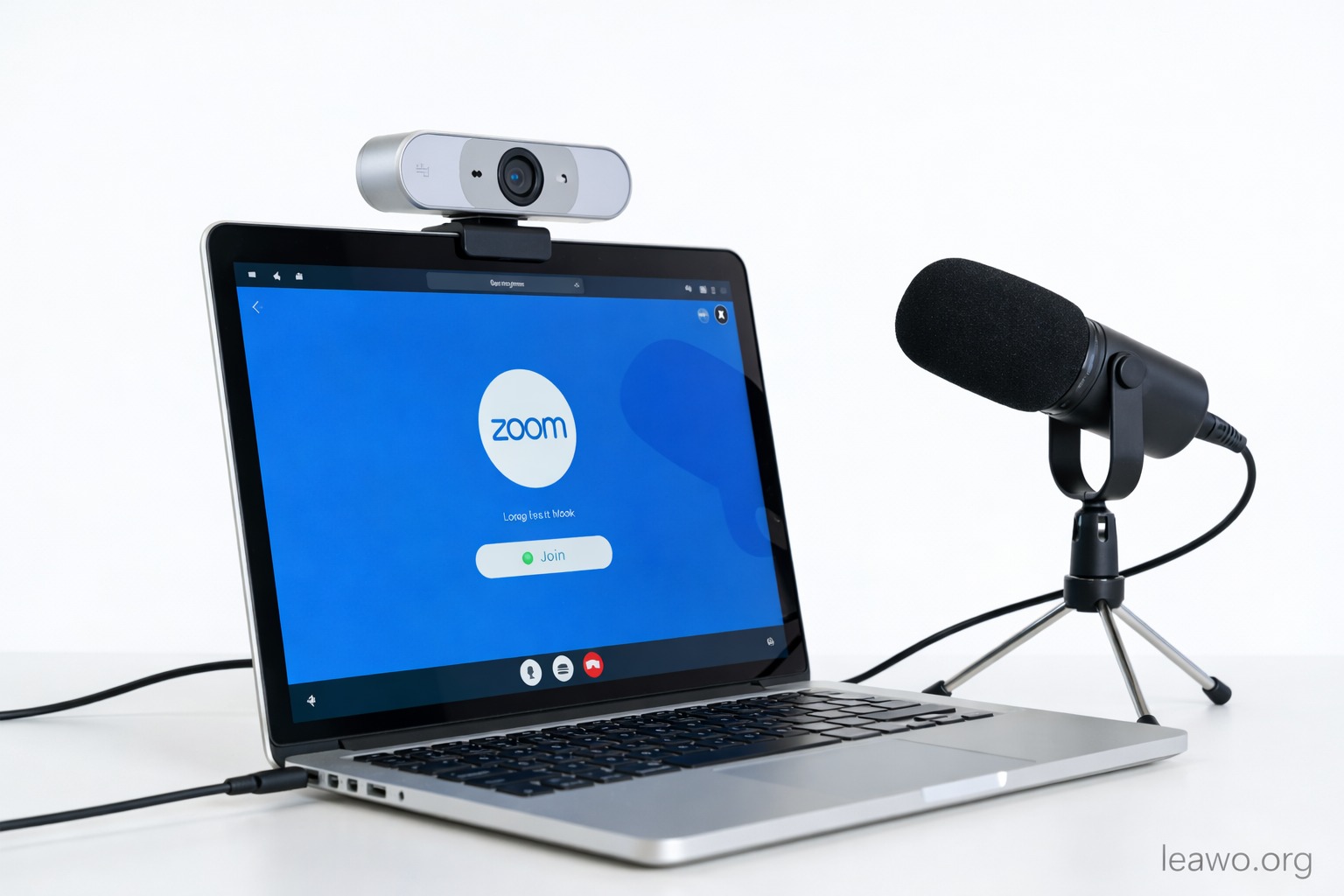
Zoom has become an essential communication tool for remote work, online learning, interviews, and virtual events. Whether you’re hosting a team meeting or joining a class as a participant, recording Zoom meetings can be extremely useful for reviewing discussions, sharing information, or keeping records for future reference.
However, many users are unsure how to record a Zoom meeting, especially when they are not the host or are using different devices like laptops or iPhones. In this guide, we’ll cover everything you need to know—from Zoom’s built-in recording rules to third-party solutions that work even without host permission.
Things to Know Before Recording a Zoom Meeting
Before you start recording, it’s important to understand Zoom’s policies and limitations to avoid confusion or violations.
- Host-only permission by default: Zoom only allows the host or co-host to record meetings using the built-in recording feature.
- Participant recording requires approval: Participants must request permission from the host to record.
- Recording notification: Zoom automatically displays a notification to all participants when recording begins.
- Local vs. cloud recording:
- Local recordings are saved directly to your computer.
- Cloud recordings are available only to paid Zoom users and are stored in the Zoom cloud.
- Device differences: Recording options vary depending on whether you’re using a laptop, desktop, or mobile device.
Understanding these rules helps you decide whether Zoom’s built-in recorder is sufficient or if a third-party Zoom recorder is necessary.
How to Record a Zoom Meeting as the Host
If you are the host, recording a Zoom meeting is straightforward and fully supported.
Record Zoom Meeting on Laptop or Desktop
- Open the Zoom app and start your meeting.
- Click the Record button on the bottom toolbar.
- Choose Record on this Computer or Record to the Cloud (if available).
- Use Pause or Stop as needed during the meeting.
- Once the meeting ends, Zoom will process the file and save it automatically.
How to Find Zoom Recordings
- Local recordings: Usually saved in Documents > Zoom
- Cloud recordings: Log in to your Zoom account and go to Recordings
As a host, you can also allow participants to record if necessary.
How to Record a Zoom Meeting as a Participant
Participants can only record meetings if the host grants permission.
Steps to Record as a Participant
- Join the Zoom meeting.
- Request recording permission from the host.
- Once approved, click the Record button.
- Stop recording when finished.
- Access the saved file after the meeting ends.
If permission is not granted, Zoom will not allow recording. In that case, many users ask: can I record a Zoom meeting if I am not the host? The answer is yes—but only with external tools.
How to Record Zoom Meeting Without Host Permission
When host permission isn’t available, third-party screen recording software is the best solution. These tools record your screen and audio independently of Zoom’s built-in restrictions.
Option 1: Leawo Free Screen Recorder
Leawo Free Screen Recorder is a popular choice for recording Zoom meetings discreetly and efficiently.
How to use it:
- Install Leawo Free Screen Recorder on your computer.
- Launch the program and select the Zoom window or full screen.
- Enable system audio and microphone if needed.
- Click Record to start capturing the meeting.
- Stop recording and save the video when the meeting ends.
This tool works well if you want a simple and lightweight solution.
Option 2: Free CleverGet Recorder
Another excellent option is free CleverGet Recorder, which provides high-quality screen recording without requiring host permission.
Why choose free CleverGet Recorder:
- Records Zoom meetings without host approval
- Captures system audio and microphone clearly
- Saves recordings in common formats like MP4
- Beginner-friendly interface with no complex setup
How to record with free CleverGet Recorder:
- Download and install free CleverGet Recorder on your computer.
- Open Zoom and join the meeting.
- Launch the recorder and select the Zoom meeting window.
- Adjust audio settings based on your needs.
- Click REC to start recording.
- Stop and save the recording after the meeting ends.
This method is ideal if you want reliable performance with minimal limitations.
FAQs
Q1: How to record Zoom meeting on laptop?
If you’re the host, simply click Record in the Zoom toolbar. If you’re a participant without permission, use tools like free CleverGet Recorder or Leawo Free Screen Recorder.
Q2: How to record Zoom meeting on iPhone?
Only hosts can record on iPhone, and recordings are saved to the Zoom cloud. Participants need host permission or must use external recording methods on other devices.
Q3: Can I record a Zoom meeting if I am not the host?
Yes, but only with host permission using Zoom’s built-in tool. Without permission, third-party screen recorders are required.
Q4: How to find Zoom recordings?
- Local recordings: Documents > Zoom
- Cloud recordings: Zoom web portal → Recordings
Q5: Are free Zoom recording tools reliable?
Yes. Tools like free CleverGet Recorder and Leawo Free Screen Recorder offer dependable performance for everyday recording needs.
Conclusion
Recording Zoom meetings has become a necessity for professionals, students, and remote teams. While Zoom’s built-in recording feature works well for hosts, participants often face restrictions. Fortunately, solutions like Leawo Free Screen Recorder and free CleverGet Recorder provide flexible and effective alternatives.
Whether you want to learn how to record Zoom meeting on laptop, capture sessions on iPhone, or record without host permission, choosing the right method ensures you never miss important information again.